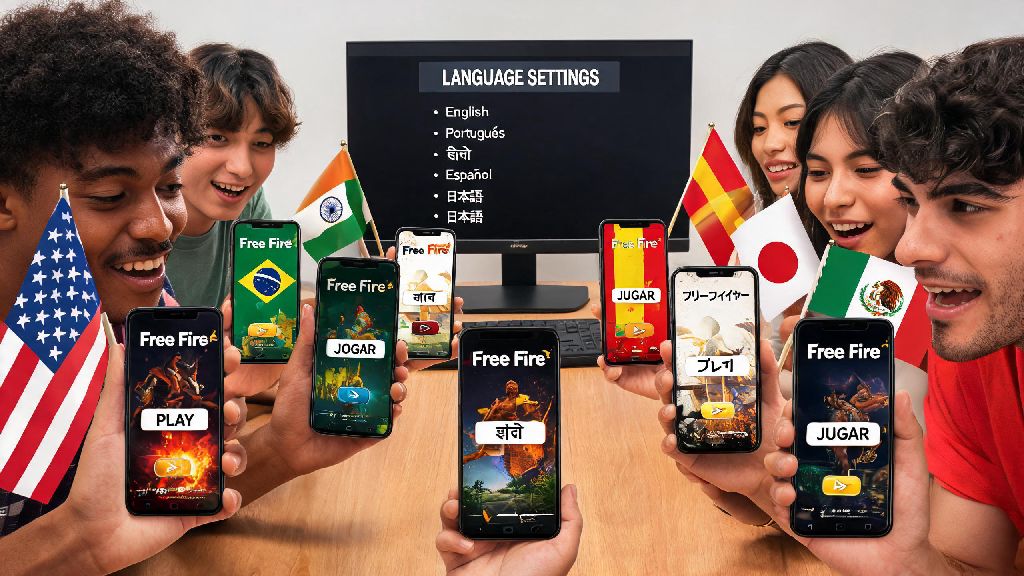
Imagine you just got hyped to play your first Free Fire match with your friends, you open the app, and every menu option is in a language you don't recognize. You can't find the match making button, you can't adjust your controls, and you're about to miss the squad queue. That's the exact situation thousands of new players run into every week, especially if they download the game while traveling, or get a region-locked version from a friend. That's why knowing how to change language in Free Fire is one of the most essential first skills for any new player, regardless of what device you play on. This guide covers every scenario, from mobile to PC emulators, plus fixes for the most common glitches that can mess up your language settings, so you don't have to waste time guessing what icons mean when you could be playing.
How to Change Language in Free Fire for Android and iOS Devices
The process for switching your in-game language is almost identical across Android and iOS devices, so you don't have to learn separate steps depending on your phone brand. First, open the Free Fire app and wait for the main lobby to load completely. Don't tap any buttons while the game assets are still loading, as this can cause temporary glitches that make the settings menu unresponsive. Once the lobby is fully loaded, look for the gear icon in the top right corner of the screen. This is the universal settings icon, so you can spot it even if you can't read any of the on-screen text in the current language.
Tap the gear icon to open the settings menu, then look for the language tab, which is marked with a small globe icon. It's usually located in the top row of menu options, right next to the sound settings tab. Tap that globe icon, and you'll see a full list of all supported languages, including popular options like English, Spanish, Portuguese, Hindi, Bengali, Arabic, and dozens of regional dialects from across Southeast Asia, Latin America, and Africa.
Scroll through the list until you find your preferred language, then tap it once. A small pop-up will appear asking you to confirm the change, and note that the game will restart to apply the new settings. If you can't read the pop-up text, just tap the orange highlighted button to confirm, and the left grey button to cancel if you picked the wrong language. The game will close and reopen automatically, and all menu text, event announcements, and in-game notifications will be in your chosen language once it loads back up.
Changing Language on Free Fire PC Emulators: What You Need to Do Differently
If you play Free Fire on a PC emulator like BlueStacks, LDPlayer, or Nox, the basic in-game language switch process is the same as mobile, but there's one extra step most new players miss. A lot of emulator app stores are region-locked, so they limit the available language options in Free Fire to match the region the emulator is set to. That means even if you follow all the in-game steps correctly, you might not see your preferred language on the list if your emulator's system settings are set to the wrong region.
First, try the standard in-game steps first: open Free Fire, go to settings, tap the globe icon, and see if your preferred language is available. If it's not, close Free Fire completely, then open your emulator's main system settings. Find the language and region tab, select your preferred language and home region, then save the settings and restart the emulator. Once the emulator loads back up, open Free Fire again, go back to the language settings tab, and you should see your desired language on the list now.
I've tested this trick with dozens of players who use emulators, and it works 9 times out of 10 for people who can't find less common regional language options. So make sure you adjust your emulator settings first before you assume the game doesn't support your language.
Common Language Switch Issues and Simple Fixes
Even if you follow all the steps correctly, you might run into a few small glitches when switching languages, especially if you're playing on an older device or a modified version of the game. Most of these issues don't require any technical expertise to fix, just a few quick adjustments. Here are the most common problems players face, and exactly how to solve them:
Never download third-party "language patch" apps to add unsupported languages to your game. These apps almost always contain malware, can get your account permanently banned for violating Free Fire's terms of service, or cause frequent crashes that ruin your matches. It's always safer to wait for official support, or use a widely supported language in the meantime.
Tips for Customizing Your Free Fire Interface After Switching Languages
Once you've got your language set correctly, you can make a few small adjustments to make your interface even easier to navigate, especially if you're using a regional language for the first time. First, adjust your text size if the letters are too small to read quickly during fast-paced matches. You can find the text size slider right under the language tab in settings, so you can pick a size that's easy to see without blocking your view of the map or enemy position indicators.
Second, turn on subtitles for in-game voice lines and event cutscenes if you want to follow character dialogues or limited-time event storylines clearly in your new language. That setting is located in the audio tab of the settings menu, and you can adjust the subtitle size and position to fit your preferences. I always keep this turned on, even when I'm playing in my native language, because it helps me catch important event details I might miss if I'm playing with the sound off.
Third, if you play with friends who speak a different language, you don't have to switch back and forth between languages to communicate. Free Fire has a built-in chat translation tool that automatically translates messages from other players into your set default language. You can turn this on in the chat settings menu, and it works surprisingly well for casual chat and match planning, even for regional dialects.
At the end of the day, figuring out how to change language in Free Fire doesn't have to be a confusing chore, even if you're opening the game for the first time and can't read a single word on the screen. Following the steps we outlined will get you set up in your preferred language in less than two minutes, and the troubleshooting tips will help you fix any rare glitches that pop up. Once your language is set correctly, you can focus all your attention on learning the game, getting more wins, and enjoying all the new events and content Free Fire releases every month, without having to guess what any of the menus say.