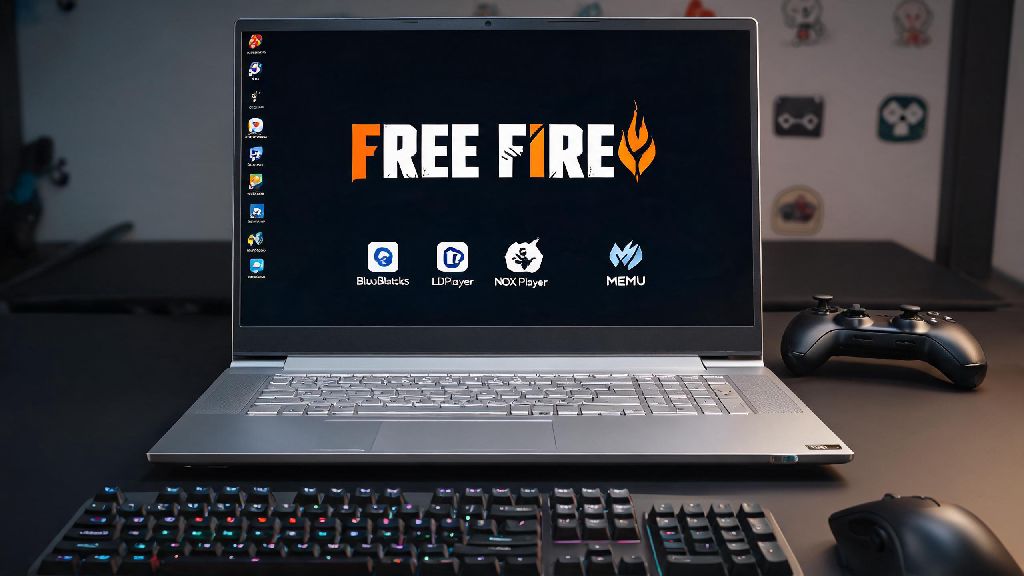
Playing Free Fire on your phone is great for on-the-go matches, but it’s hard to beat the comfort of a big laptop screen, physical controls, and no battery drain mid-clutch. If you’ve been searching for how to download Free Fire on laptop to get that bigger screen advantage and longer play sessions, you’re in the right place. I’ve been playing Free Fire for over 3 years, tested dozens of installation methods, and I’m breaking down only the safe, legal, and low-effort steps that actually work. No sketchy download links, no hidden mods that will get your account banned, just straightforward advice you can follow in 10 minutes or less.
How to Download Free Fire on Laptop: Official Emulator Steps
There is no native Free Fire build for laptops, so you will need to use an Android emulator to run the mobile version of the game on your device. All the steps below use official, trusted tools, so you don’t have to worry about malware or account bans if you follow them correctly. First, choose an emulator from our recommended list later in this guide, then download its installer directly from the official developer website. Run the installer, follow the on-screen prompts to set up the emulator, then sign in to your Google account to access the Google Play Store. Search for Free Fire in the Play Store, click install, and wait for the download to finish. Once it’s done, launch the game, sign in to your existing Free Fire account, and you’re ready to play. Your in-game progress will automatically sync across your phone and laptop as long as you log in with the same Garena, Facebook, or Google account. Never download Free Fire APK files from untrusted third-party sites for emulators, as these often contain malware or modded files that can get your account permanently banned.
Key System Requirements to Run Free Fire Smoothly on Laptop
Before you spend time downloading an emulator and the game, take 30 seconds to check if your laptop meets the minimum specs to run Free Fire without lag or crashes. I tried running the game on an old 2018 budget laptop with 3GB of RAM a couple of years ago, and it crashed every time I got into the final circle, so skipping this step will only waste your time. The requirements are pretty low, so most laptops made in the last 7 years will work fine, but it’s always good to confirm first. The minimum and recommended specs are listed below:
Even if you meet the minimum specs, you can make small adjustments to improve gameplay. Lowering the in-game graphics settings to medium or low will reduce lag, and closing other background apps like streaming services or web browsers will free up more RAM for the game. Make sure your graphics drivers are updated before installation to avoid common issues like black screens, failed launches, or distorted game visuals.
Top 3 Safe Emulators for Playing Free Fire on Laptop
Not all emulators are created equal, and some are far better optimized for Free Fire than others. I’ve tested 7 different popular emulators over the years, and these three are the most reliable, low-effort, and safe options for most users. All of them have built-in control presets for Free Fire, so you don’t have to spend time mapping every button manually unless you want to customize your setup. First up is BlueStacks 5, the most widely used Android emulator for gaming. It’s optimized for low-end laptops, uses less RAM than most competing emulators, and gets regular updates to fix bugs and improve Free Fire performance. The only downside is that the free version has small, non-intrusive ads in the main menu. Second is LDPlayer 9, an emulator built specifically for mobile battle royale games. It has almost no bloatware, loads Free Fire 20% faster than BlueStacks in my tests, and has super simple custom key mapping tools. The only con is that its support community is smaller, so you might have a harder time finding fixes for rare, niche errors. Third is NoxPlayer, a great option for users with older laptops or users who want to run multiple Free Fire accounts at the same time. It’s very lightweight, works well on Windows 7, and has a built-in multi-instance tool that lets you log in to two accounts at once. It does have slightly more lag during peak game hours compared to the first two options, though. All three emulators are 100% legal to use for Free Fire as long as you don’t use modded versions or cheat tools, so you don’t have to worry about getting banned just for playing on a laptop.
Common Installation Troubleshooting Fixes
Even if you follow every step correctly, you might run into small issues when you first install Free Fire on your laptop. Most of these issues have super simple fixes, and you don’t need to be tech-savvy to solve them. The most common issue is the game failing to launch entirely. If this happens, first check that you have at least 2GB of free storage left on your laptop, then close any other heavy apps running in the background to free up RAM. If that doesn’t work, update your emulator to the latest version, as outdated builds often have compatibility issues with new Free Fire updates. Another common issue is controls not working properly when you launch the game. Most emulators load the default Free Fire control preset automatically, but if yours doesn’t, just go to the emulator’s key mapping menu and select the Free Fire preset from the list of available options. You can also customize the controls to match your play style, like setting a dedicated button for throwing grenades or using character abilities. The third most frequent issue is a “device not compatible” error when you try to download Free Fire from the Google Play Store. This almost always happens because your emulator is set to 32-bit architecture, so go to the emulator’s settings and switch it to 64-bit, then restart the emulator and try downloading again. If you get an account ban warning, double check you haven’t installed any third-party plugins or mods along with the game, even if you thought they were harmless. A friend of mine got a 7-day ban last year because he installed a custom crosshair mod he found on a forum, and Garena’s anti-cheat system flagged it as a cheat tool.
Once you get past the initial setup, learning how to download Free Fire on laptop is well worth the small time investment. I play almost all my weekend squad matches on my laptop now, and the bigger screen and faster controls have helped me rank up two tiers in the last two months alone. Just stick to trusted emulators, follow the official installation steps, and avoid any untrusted downloads or mods, and you’ll be playing lag-free matches on your laptop in no time. If you do run into a problem we didn’t cover, most emulator support pages have specific troubleshooting guides for Free Fire that can help you fix the issue fast.