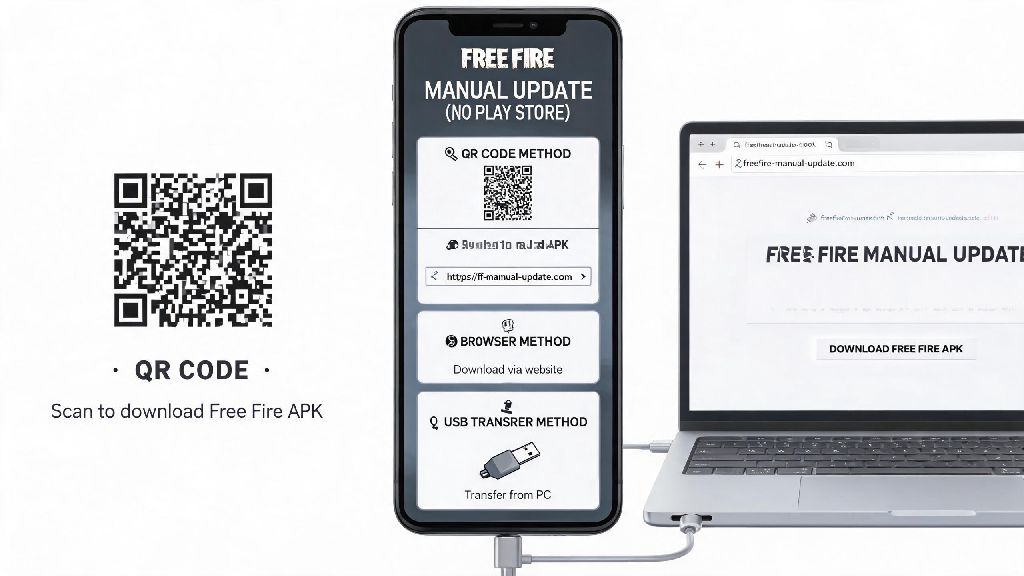
If you’ve ever tried to open Free Fire only to get hit with a mandatory update pop-up that won’t load because your Play Store is glitching, you don’t have to miss out on the latest event or rank push while you fix the issue. I’ve had this exact problem last year when my custom Android ROM’s Play Store stopped working after a system update, and I almost missed out on the limited-edition Free Fire World Cup collab skins before I tested manual update methods. There are plenty of valid reasons you might not want to use Google’s app store for updates: limited storage, regional restrictions, broken Play Store services, or even slow download speeds on the official platform. We’ve tested every safe method out there to figure out how to update Free Fire without Play Store, so you can get back to your matches in 10 minutes or less without risking your account security.
Pre-Upgrade Safety Checks You Must Do First
Before you download any files or change settings on your device, take 2 minutes to run through these quick checks to avoid losing progress or downloading malicious software. Always link your Free Fire account to Facebook, VK, or your email first before any manual update, so if you have to uninstall and reinstall the app, all your skins, rank progress, and in-game purchases are saved to your cloud account. I skipped this step once a few years ago and lost 3 months of rank progress when a corrupted APK forced me to reset the app, so trust me when I say this is non-negotiable.
Next, verify that you have at least 2GB of free storage space on your device. The latest Free Fire update file is around 800MB, and you need extra space for the installation process and temporary files, so if you’re running low, delete unused apps or old photos first. Never download APK files from random pop-up ads or unvetted forums, even if they promise exclusive skins or free diamonds. These files are almost always modified with malware that can steal your account credentials or personal data from your phone.
Finally, double-check that your device allows installs from unknown sources for the file manager or browser you’re using to download the update. On newer Android versions, this is a per-app permission instead of a global setting, so you can turn it on just for your download app and turn it off again once the update is installed to keep your device secure.
How to Update Free Fire Without Play Store Using Official APK Files
The safest and most reliable method for manual updates is using the official Free Fire APK files released directly by Garena. Unlike third-party files, these are identical to the ones available on the Play Store, so you don’t have to worry about account bans or corrupted installs. When you’re learning how to update Free Fire without Play Store, this is the first method you should try, as it works for 90% of users with Play Store issues.
First, find the latest official Free Fire APK release from Garena’s official mobile site. You can cross-check the version number with the latest update announcement on Free Fire’s official social media pages to make sure you’re downloading the right build. Always match the APK version number to the latest official update announcement so you don’t download an outdated or beta build that might not work with your existing account or have unfinished features.
Once the APK file is finished downloading, tap on it in your file manager to start the installation process. You might get a pop-up warning you about installing apps from unknown sources, but as long as you downloaded the official file, you can approve the permission to continue. The installation will take 2 to 5 minutes depending on your device speed, and once it’s done, you can open Free Fire as normal. All your existing data will stay intact, and you’ll have access to all the latest update content right away.
This method has a few key benefits: it’s completely free, you don’t need a Google account to use it, and download speeds are often faster than the Play Store, especially if you’re on a congested network. The only downside is that you won’t get auto-update notifications, so you’ll have to check for new updates manually whenever you get an in-game update pop-up. Manual updates with official files will never trigger an account ban on their own, so you don’t have to worry about losing your account for using this method.
Alternative Methods for Manual Free Fire Updates
If you can’t access the official Garena site for any reason, or you have limited mobile data to download the full APK file, there are a few other safe alternative methods you can use to get the latest update. All of these methods are tested and safe as long as you follow the safety rules we covered earlier, and they work for most device types and regions.
The most popular alternative options include:
If you’re using a trusted APK hosting platform, make sure you check the user reviews and file upload date before downloading, to avoid outdated files. If you’re sharing the APK from a friend’s device, use a direct file transfer app that doesn’t compress or modify the APK file, to avoid corrupted installs. Only use file transfer methods that don’t modify the original APK file to avoid installation errors or unexpected account issues.
We don’t recommend using modified APK files that promise unlimited diamonds or auto-aim features, even if they claim to be the latest update. These files almost always have malware, and Garena’s anti-cheat system will detect them immediately, leading to a permanent account ban that you can’t appeal. It’s never worth risking your account for cheap cheats or free in-game items.
Common Issues and Fixes for Manual Free Fire Updates
Even if you follow all the steps correctly, you might run into a few common issues when installing a manual Free Fire update. These are usually easy to fix in a few minutes, and you don’t need any technical skills to resolve most of them.
The most common issue is an “installation failed” error when you try to run the APK file. This usually happens if you don’t have enough storage space, or you have an old corrupted APK file saved on your device. To fix it, delete all old Free Fire APK files from your device, free up at least 2GB of storage, and download the latest official APK again. If you still get the error, restart your device and try the installation again.
Another common issue is the app crashing immediately after you open it following the update. This is usually caused by cached data conflicts between the old app version and the new update. To fix it, go to your device’s app settings, find Free Fire, and clear the app cache. Don’t clear the app data, or you’ll lose your locally saved settings and have to log in again. Once you clear the cache, restart the app and it should work normally.
The last common issue is an account login error after you install the update. This almost always happens if you downloaded an APK for a different region than your account is registered in. For example, if you have a Southeast Asian account and you downloaded the Latin American region APK, you won’t be able to log in. To fix this, delete the APK and download the correct region build for your account. If you get an "account banned" pop-up after a manual update, you likely downloaded a modified APK, not the official build – uninstall it immediately and download the official version to avoid permanent ban enforcement.
At the end of the day, you don’t have to let a broken Play Store or regional restriction stop you from enjoying the latest Free Fire content, as long as you prioritize safety over fast downloads. Taking 2 extra minutes to verify your file source and back up your account will save you hours of frustration from lost progress or malware on your device. Now that you know how to update Free Fire without Play Store, you can jump straight into the newest game mode or rank push whenever an update drops, no Google account required.