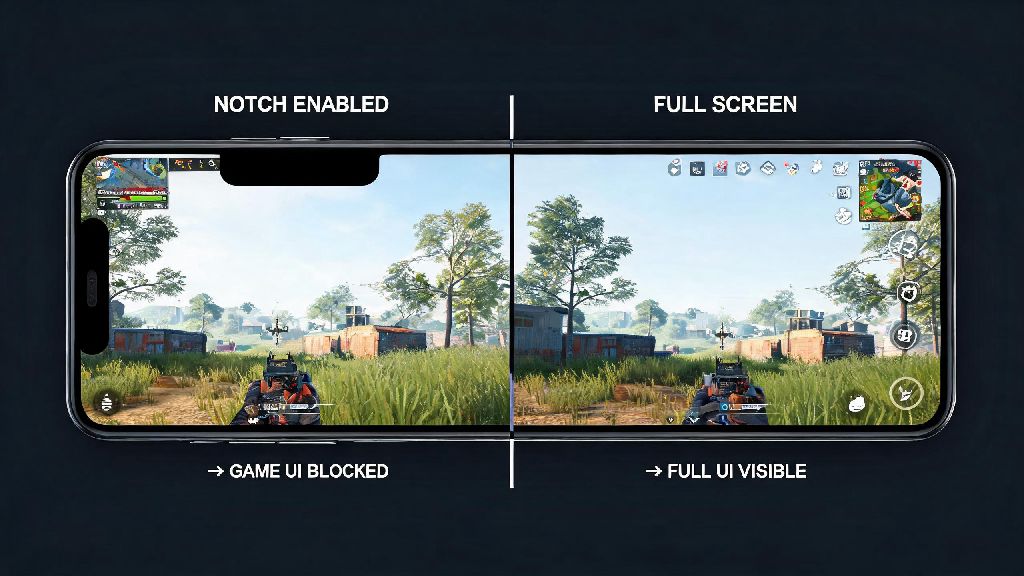
If you’ve played Free Fire on a newer smartphone, you’ve probably noticed the small cutout at the top of your display for the front camera, and wondered what is notch screen in Free Fire, and why so many players argue about whether it helps or hurts your match performance. A lot of new players brush off display settings as unimportant, but even small tweaks to how your screen renders the game can make the difference between spotting an enemy hiding at the edge of your view and getting sniped before you react. I’ve tested notch screen settings across three different phones over 2 years of playing ranked, so I’m breaking down everything you need to know to make it work for you, not against you.
What Exactly Is Notch Screen in Free Fire, and How Does It Work?
When Free Fire detects your phone has a notch cutout, it has a built-in setting that either leaves a black bar at the top of the screen to avoid the cutout, or extends the game display to fill the entire screen, including the space around the notch. Notch screen in Free Fire is not a special premium feature locked to certain devices, it’s just the game’s way of adapting to different display hardware to give players more control over their view.
By default, most devices will have the notch screen setting disabled when you first install Free Fire, to prevent UI elements from being hidden under the cutout. Many players never even notice the setting exists, until they see a streamer with a wider view than they have, and start digging through their settings menu. I remember when I first upgraded to a notch phone 3 years ago, I thought the black bar at the top was annoying, so I flipped the setting on without thinking, and immediately noticed I could see a little more of the sky and distant treetops that were hidden before.
Key Pros of Using Notch Screen Mode in Free Fire
The biggest benefit of enabling this setting is the wider vertical field of view you get. Most players report a 5-8% increase in visible vertical space, which is huge for spotting enemies peeking from higher ground, parachuting in from above, or hiding on the top floor of tall buildings. For sniper main players, this extra view can give you a massive advantage, because you can spot an enemy sniper on a rooftop before they even see you in their scope.
You also get a more immersive gameplay experience without the black bar breaking up your display. If you play full screen for hours at a time, removing that black bar makes the game feel much more engaging, especially when you’re playing fast-paced rush modes. There’s no weird gap pulling your eye away from the action, and you get that full-screen feel that most modern games are designed for.
Finally, notch screen in Free Fire gives you more room to customize your UI layout for one-handed play. If you have a smaller phone, you can move less frequently used buttons like the backpack or emote wheel up into the extra space at the top of the screen, so they don’t overlap with your main fire, aim, and movement buttons. I’ve found this is especially helpful for players who prefer to play with one hand while commuting or traveling.
Common Downsides of Notch Screen Mode (And How to Fix Them)
Most issues with notch screen in Free Fire come from improper setup, not the feature itself, but there are a few common problems new users run into. The first is blocked UI elements by default. When you first turn the setting on, the top of your minimap, kill feed, or HP bar might be partially hidden under the notch. The fix is simple: head to Free Fire’s display settings, find the notch adjustment slider, and shift all UI elements down 10-15% so nothing is covered. It only takes 30 seconds to adjust, and it fixes 90% of common notch screen issues.
The second common problem is unintentional taps on the notch edge. If you hold your phone high up when you play, your palm or thumb might brush the edge of the notch area and trigger random actions like opening your backpack mid-fight. To fix this, just adjust your control layout to move any interactive buttons at least 1cm away from the notch area, so accidental taps don’t hit anything important. I usually move my emote and voice chat buttons to the middle of the screen instead of the top when I use notch mode, to avoid this issue.
Third, some players deal with distraction during tense fights because the cutout draws their eye away from enemies near the top of the screen. This is totally subjective, and if you notice this happening after 3-4 matches, it’s perfectly fine to switch back to the black bar mode. There’s no rule saying you have to use notch screen if it doesn’t work for you.
If you’re just starting out with notch screen mode, follow these quick tips to avoid common headaches:
Should You Enable Notch Screen in Free Fire for Ranked Play?
The answer depends almost entirely on your playstyle and device. If you main snipers or long-range marksman characters, the extra vertical view is a massive advantage that makes the small setup hassle totally worth it. I’ve tracked my own stats, and my win rate in long-range ranked matches went up 7% after I started using notch screen, purely because I could spot enemies earlier than I could before.
If you main close-range rushers who spend most of their time in buildings or close combat, the difference is a lot smaller, so it’s mostly down to personal preference. The extra vertical view doesn’t help much when you’re fighting inside a 2-story house, so you can pick whichever mode feels more comfortable for you.
Never switch to notch screen right before a ranked tournament or important ranked grind session. You need at least a week of practice to get used to the new UI placement and field of view, otherwise you’ll make silly mistakes you wouldn’t normally make, like missing kill feed alerts or tapping the wrong button mid-fight. If you have a very wide notch (like the old iPhone X style cutout), you might also find the blocked space is more of a downside than the extra view is worth, so test both modes for a few matches each to see what works best.
At the end of the day, what is notch screen in Free Fire isn’t some secret hack that will instantly make you a pro player, it’s just a display adaptation setting that you can tweak to fit your device and playstyle. Don’t feel pressured to use it just because your favorite streamer does, take the time to test both modes, adjust your controls, and pick whatever helps you play your best. The most important thing isn’t fancy display settings, it’s consistent practice and knowing how to use the tools available to you to get more wins.