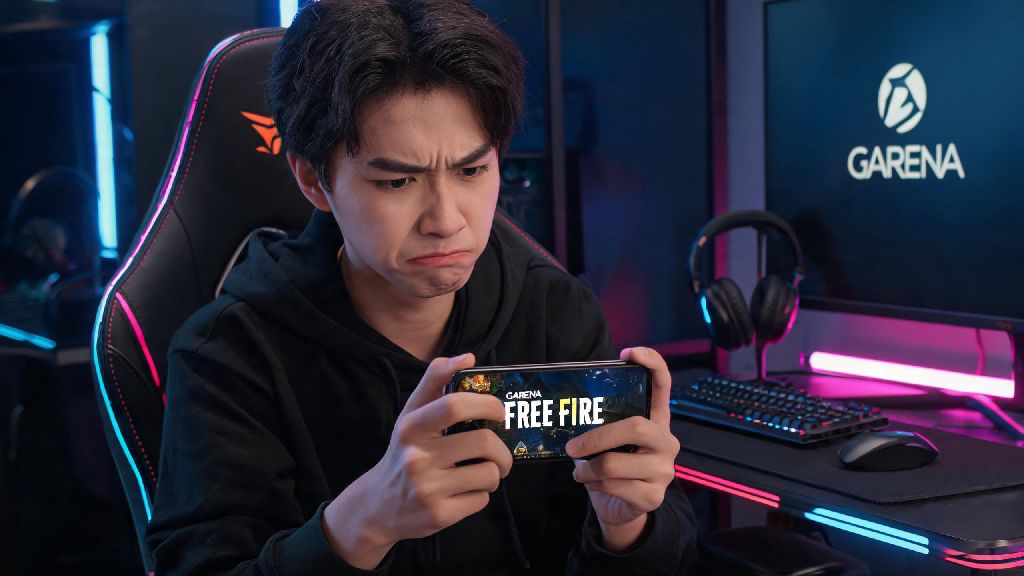
It’s the worst feeling when you carve out 30 minutes for a quick ranked match, tap the Free Fire icon on your home screen, and nothing loads. Maybe it crashes immediately after the Garena logo, or gets stuck on the loading screen forever. You’re not alone in this frustration—launch errors are one of the most common complaints from Free Fire players across all devices. This guide breaks down exactly why Free Fire is not opening for you, and shares tested, no-fuss fixes that work for both mobile and emulator users.
Common Reasons Why Free Fire Is Not Opening on Mobile and PC
Before you start randomly tweaking settings on your device, it helps to know what’s actually causing the launch failure. From my experience helping dozens of clan members fix this exact issue, most causes fall into a small handful of categories. Always check official Free Fire social channels first if you suspect a server outage—regional server maintenance or unexpected crashes will block all players in your area from launching the game, and there’s nothing you can do but wait for the team to fix it.
Other common causes include outdated game versions that are no longer supported by Garena’s anti-cheat system, corrupted temporary cache files that get stuck over time, and insufficient storage or RAM on your device. Conflicting background apps, especially VPNs or screen recording tools that trigger anti-cheat flags, can also block the game from opening. If you’re using an emulator on PC, outdated emulator software or unmet system requirements are often the root cause.
Step-by-Step Quick Fixes You Can Try First
Most launch errors can be fixed in less than two minutes with these simple, no-risk steps. You don’t need any technical knowledge to try these, and they won’t affect your game data at all.
If none of these steps work, you can move to more targeted fixes. Never clear your game's main data folder unless you have your account linked to Google, Facebook, or VK—you’ll lose all your progress, skins, and rank if you clear data without a linked account. Restarting your router can fix hidden connectivity issues that don’t show up when browsing light websites, so that’s another quick step to try if you’re on Wi-Fi.
Targeted Fixes for Persistent Launch Failures
If the quick fixes didn’t work, the issue is likely tied to corrupted cache or an outdated game version. For Android users, go to your device settings, open the Apps menu, find Free Fire, select Storage, and tap Clear Cache. This only deletes temporary files that the game built up over time, and won’t touch your saved account data. For emulator users, you can find the clear cache option in the emulator’s settings menu, usually under the Storage or Advanced tab.
If clearing cache doesn’t work, check if there’s an update available for Free Fire on the Google Play Store or Apple App Store. Outdated game versions are often blocked by Garena to force users to install the latest security patches and new content. Third-party modded APKs of Free Fire often contain malware or are blocked by the game's anti-cheat system, leading to permanent launch blocks or account bans, so always download the game directly from official app stores.
If you’re using an older device that runs Android 5.0 or lower, the latest Free Fire updates may no longer be compatible with your operating system. You can try downloading Free Fire Lite if it’s available in your region, as it’s built to work on lower-spec devices with less processing power. Free Fire Lite is only available in select regions, so make sure you download it from official sources to avoid security risks.
What to Do If None of the Fixes Work
In rare cases, all the standard fixes won’t resolve the launch issue, and you’ll need to reach out for extra support. First, check your registered email or in-game notifications (if you can briefly open the game) to see if your account has been banned. Banned accounts will often be blocked from launching the game entirely, and you’ll need to appeal the ban through official support channels if you believe it was a mistake.
To contact Free Fire support, you can visit the official support page or use the in-app help center if you can access it. Be ready to share your device model, operating system version, any error messages you see on launch, and your Free Fire account ID to speed up the troubleshooting process. Free Fire support never asks for your account password or payment details when troubleshooting launch issues, so ignore any requests for that information.
If you’re using an emulator, try switching to a different supported emulator like BlueStacks or NoxPlayer, as some older emulators lose compatibility with Free Fire after major updates. You can also try reinstalling the game entirely, but only do this if you’re sure your account is linked properly to avoid losing your progress.
At the end of the day, most launch issues are simple to fix and don’t require any fancy tools or technical skills. I’ve used all of these fixes personally when I couldn’t get the game to open 10 minutes before a clan tournament last month, and they got me back in the game in less than 5 minutes. The next time you run into this issue, work through the steps in order and you’ll almost always resolve why Free Fire is not opening without losing any of your hard-earned progress. If you have a go-to fix that we didn’t mention here, feel free to share it in the comments to help other players out.